
I was introduced to plotting and exploring data in R during the online Coursera Data Science course. We covered the base plotting system, lattice plot and ggplot2 amongst others. I liked the look of ggplot2 as it allows customisation of figures. I would like to use ggplot2 more often as this is the best way to learn, but I need to grasp the basic syntax first. The following is a basic introduction to making bar charts with ggplot2.
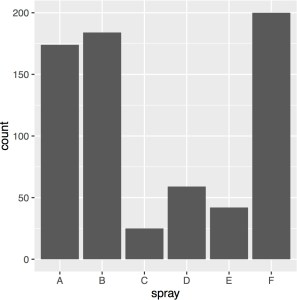
First, set up the R working environment and load the InsectSprays dataset, which contains counts of insects following treatment with different insecticides. Get the sum of all insects for each of the five spray categories and plot as a bar chart:
Draw a simple bar plot
suppressWarnings(require(ggplot2))

# read in data
df <- InsectSprays

# get sum of all insects by spray
df2 <- aggregate(count ~ spray, df, sum)

# plot as a bar chart
p <- ggplot(df2, aes(x=spray, y=count)) + geom_bar(stat="identity")
p
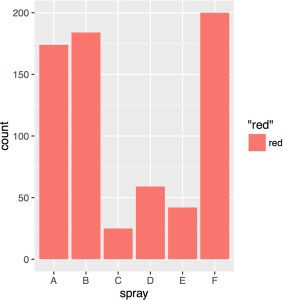
Change the color of bars
p1 <- ggplot(df2, aes(x=spray, y=count, fill="red")) + geom_bar(stat="identity")
p1
Add multiple colors
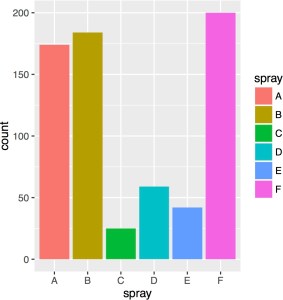
Assigning a list of colors to factor variables allows the colors to be added to the plots. Color the bars according to the three different insect sprays. This requires:
RColorBrewerpalette, which has a series of different hexadecimal colors (NB: colors not colours!)- Make a vector of 6 colors, one for each of the sprays
- Assign a names of a sprays (A to F) to each colors
suppressWarnings(require(RColorBrewer))

# get a vector of 6 different colors from Set1 of brewer.pal (it has 9 colors max)
myColors <- brewer.pal(6, "Set1")

# assign a different color to each spray factor
# NB: use as.factor if the vector to be mapped is not already a factor
names(myColors) <- df2$spray

# now we can use the colors assigned to the six sprays to color the plot
p2 <- ggplot(df2, aes(x=spray, y=count, fill=spray)) + geom_bar(stat="identity") + scale_colour_manual(values=myColors)
p2
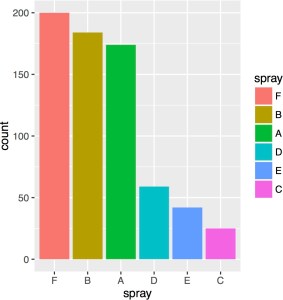
Change the order of the bars, from largest to smallest
To reorder the bars according to insect count, assign new levels to the spray factors using transform.
# change levels of spray
# use descending counts (-count)
df2 <- transform(df2, spray = reorder(spray, -count))

# now we can plot with bars in descending order
p3 <- ggplot(df2, aes(x=spray, y=count, fill=spray)) + geom_bar(stat="identity") + scale_colour_manual(name = "spray", values=myColors)
p3
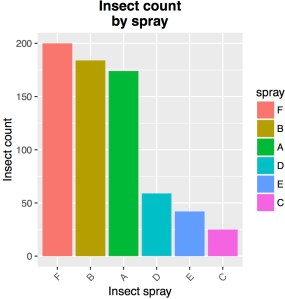
Format heading and axis
Add bold title, amend x and y axis labels and change direction of x labels
p4 <- p3 + ggtitle("Insect count\nby spray") + theme(plot.title=element_text(face="bold"))
p5 <- p4 + xlab("Insect spray") + ylab("Insect count")
p6 <- p5 + theme(axis.text.x = element_text(angle=45, vjust=1, hjust=1))
p6
Change values of y labels
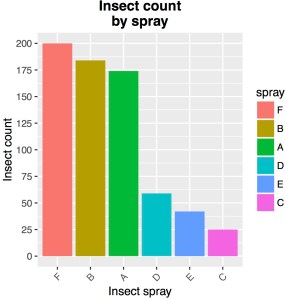
p7 <- p6 + scale_y_continuous(breaks=c(0, 25, 50, 75, 100, 125, 150, 175, 200), labels=c("0", "25", "50", "75", "100", "125", "150", "175", "200"))
p7
Increase size of border
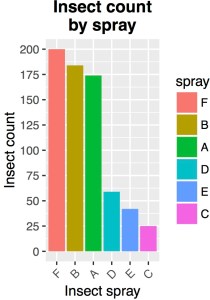
This requires the grid package, which is a base package, but requires calling
suppressWarnings(require(grid))

# unit values correspond to top, left, bottom, right
p8 <- p7 + theme(plot.margin=unit(c(1,1,1,3), "cm"))
p8
Stacked bar chart
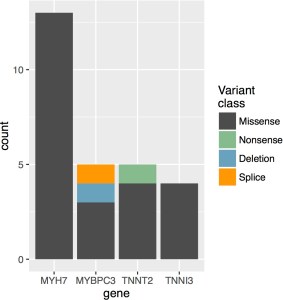
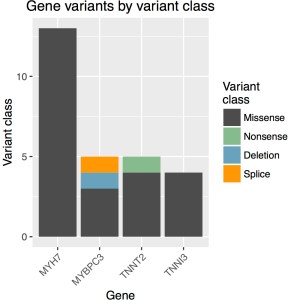
In this example, I will make a stacked bar chart, reorder the levels of a variable and assign new custom colors to the plot. Starting from a dataframe, I will use the reshape package to melt the data into long format as this is more convenient for ggplot2.
require(reshape)
require(ggplot2)

# make a data frame wide format
df <- as.data.frame(matrix(c(13, 0, 0, 0, 3, 0, 1, 1, 4, 1, 0, 0, 4, 0, 0, 0), nrow=4, ncol=4, byrow=TRUE))
names(df) <- c("Missense", "Nonsense", "Deletion", "Splice")
df$gene <- as.factor(c("MYH7", "MYBPC3", "TNNT2", "TNNI3"))

# show the data frame
df

# use reshape package to melt the data to long format
df2 <- melt(df)

# rearrange levels to MYH7, MYBPC3, TNNT2 and TNNI3
df2$gene <- factor(df2$gene, levels =c("MYH7", "MYBPC3", "TNNT2", "TNNI3"))

# for stacked columns, use weight=desired_column_name
p <- qplot(gene, data=df2, geom="bar", weight=value, fill=variable)

# add new colors
p1 <- p + scale_fill_manual(values=c("#4c4c4c", "#86BB8D", "#68a4bd", "#ff9900"), name="Variant\nclass")
p1
Format heading and axis
Add title, change axis labels and orientation
p2 <- p1 + ggtitle("Gene variants by variant class") # title
p3 <- p2 + xlab("Gene") + ylab("Variant class") # axis labels
p4 <- p3 + theme(axis.text.x = element_text(angle=45, vjust=1, hjust=1)) # orient x axis
p4

 Richard D Bagnall